Planstone API - Before Getting Started
In order to set up new data sources that connect with the Planstone API, you will need the to contact Planstone to receive the following:
- The API base URL (it could look similar to this https://apps.planion.com/feed/v1)
- Your Planstone Account Code (this is likely your organization name)
- The conference name in Planstone (this could look like ABCD2024)
- Get confirmation that Planstone added ATIV's user account to the project on the Planstone side.
Once you have received the details, you will be able to set up Import Sources in the Conference app builder.
Access the menu item in the Conference App Builder where you would like to import data:
Agenda for session data
Speakers for presenters
Media for abstracts
Setting Up the Initial Data Sources and Running the Initial Import
Speakers
- Access the Conference App Builder (From our website, choose Organizer Login > EventPilot on the top right)
- Select your project
- Navigate to Agenda > Speakers
- Click Add Import Source (note: you may need to click the carrot to expand the import card before this button is visible)
- Enter a logical name for the source to indicate where this import is coming from e.g. Planstone API
- Tip: we recommend including the Planstone event ID in the name. When you clone your project in the future, you'll then easily know if you need to update your import source.
- Select Planstone from the Source dropdown
- Select Next
- As prompted on the screen, enter:
- Planstone Account Code
- Planstone Conference Code
- In Subsession Roles Without Speaker (optional) enter a comma separated list of the speaker roles where you do not want speaker entries generated. For example, Break or Q&A.
If you have used import customizations in the past, ask your ATIV Project Manager to add your Customization Code (generally your ORG ID in the App Builder) or Custom Import Parameters
Select Next
Mapping
Complete the field mapping for the tableid > Speaker ID
name > FirstName
name > Last Name
company > Organization
bio > Bio
degree > Title
email > Private Email (this email is not displayed in the app)
thumbnail > Photo
Next to run the import
If there are errors in your data, review: Common Conference App Builder Import Data Errors and Import Exclusion Reasons
Sessions
- Navigate to Agenda > Sessions
- Click Add Import Source (note: you may need to click the carrot to expand the import card before this button is visible)
- Enter a logical name for the source to indicate where this import is coming from e.g. Planstone API
- Tip: we recommend including the Planstone event ID in the name. When you clone your project in the future, you'll then easily know if you need to update your import source.
- Select Planstone from the Source dropdown
- Select Next
- As prompted on the screen, enter:
- Planstone Account Code
- Planstone Conference Code
If you have used import customizations in the past, ask your ATIV Project Manager to add your Customization Code (generally your ORG ID in the App Builder) or Custom Import Parameters
If you wish to display Learning Objectives in the session detail view, click on Include Learning Objectives in Description and select Yes
Add which speaker roles should be included to display in parent sessions as a comma separated list e.g. Moderator,Discussion Leader, etc.
Optional: If you wish to import CE types to display in Filter 3 (via mapping in the next step), select the type of credits e.g. CME,CE,MOC (add as a comma separated list)
Select Next
Mapping
Complete the field mapping for the tableid > Session ID
sesid > -- Do Not Import -- (unless you'd like to display this number as 'Session Number'
sessionName > Session Title
Tip: Leave the "Presentation" title empty (this is the cargo field in the API) and that child session won't be imported.
sessionType > Session Type
startDate > Date
startTime > Start Time
endTime > End Time
full_location > Location
Session location: You can choose to import just the room name or a concatenated version of the romance and venue name. Any commas added in the room or venue name are removed as those symbols are not supported for locations. Learn more in this article: Can I use symbols like slashes, semicolons, etc. for locations (rooms, booths), tracks and metadata? My pin drop or filter is not working?
full_loc_and_desc > Description
parent > Parent Session
speakers > Speaker ID
media > Media Items
Filters - you may have additional fields in your data:
Primary Category > Filter 1
Topic Focus > Filter 2
You can choose additional available keywords for Filter 3 and Filter 4
Note: Pipe | delimiter in metadata: The Planstone agenda has fields called "Tracks" which vary from client to client. These fields are all pulled into the available dataset as Filter (metadata keyword) columns. If you map any of those to one of the Filter fields, the delimiter must be set to the pipe delimiter | If that is not done, you will run into errors where the content exceeds the field length. All filters for the Planstone import must be set to the pipe delimiter.
Click the hamburger menu next to the field
Select Pipe delimiter
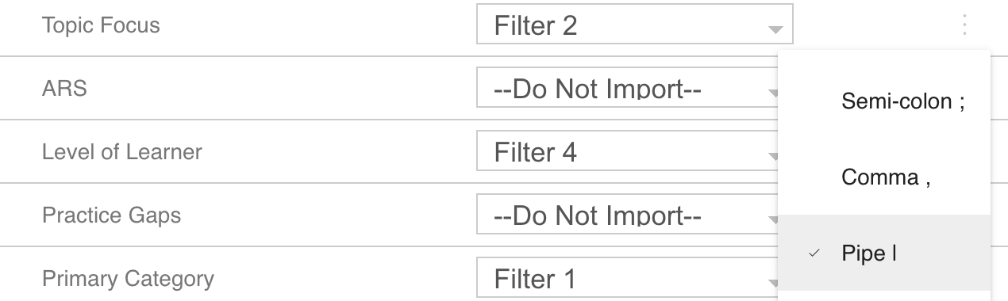
Click Next to run the import
If there are errors in your data, review: Common Conference App Builder Import Data Errors and Import Exclusion Reasons
Abstracts (Media)
- Navigate to Media > Media Data
- Click Add Import Source (note: you may need to click the carrot to expand the import card before this button is visible)
- Enter a logical name for the source to indicate where this import is coming from e.g. Planstone Abstracts
- Tip: we recommend including the Planstone event ID in the name. When you clone your project in the future, you'll then easily know if you need to update your import source.
- Select Planstone Abstracts from the Source dropdown
- Select Next
- As prompted on the screen, enter:
- Planstone Account Code
- Planstone Conference Code
- Optional
- Embargo: If you don't have embargo dates on abstracts in Planstone, you can set a default embargo date for all abstracts, you can set the date using this format yyyy-mm-dd for example: 2027-09-26
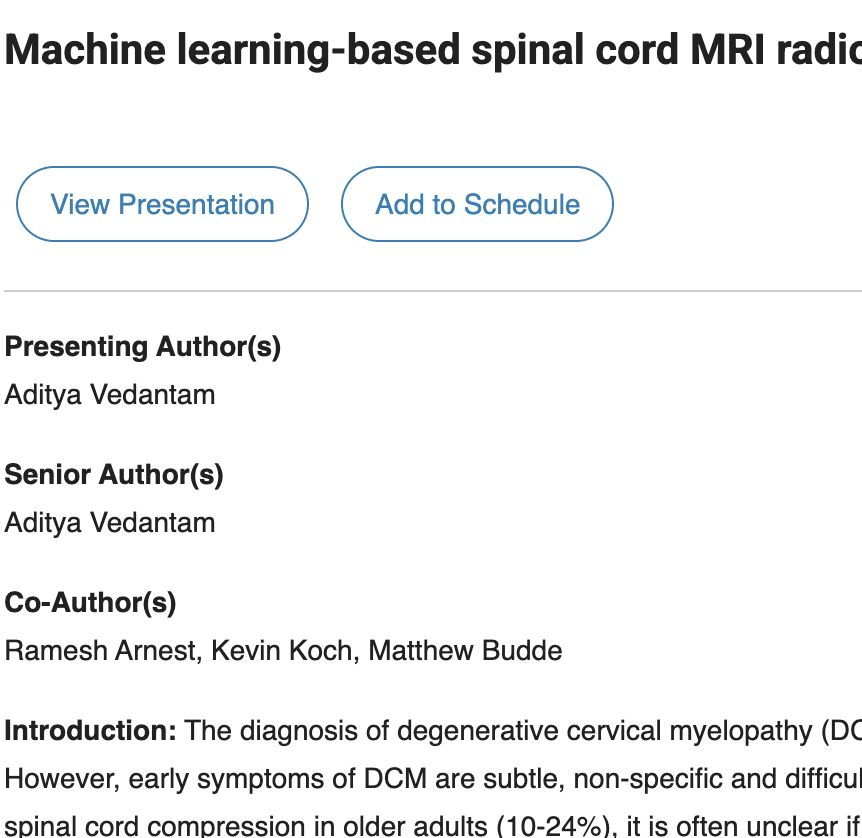
- Display Presentation & Schedule Buttons: if your abstracts are linked to presentation sessions that users could add to their schedule, select Yes.
If you have used import customizations in the past, ask your ATIV Project Manager to add your Customization Code (generally your ORG ID in the App Builder) or Custom Import Parameters
Select Next
Mapping
Complete the field mapping for the tablemedia_id > Media ID
session_id > -- Do Not Import --
Important: Do not map session IDs for abstracts. If you do, you are double mapping them and they may appear not only in the child sessions (presentations) but also listed in the parent session. The Agenda Sessions import already links to the abstracts.
title > Title
default_subtitle > Subtitle
type > Media Type
description > Description
icon > HTML icon
media_type_filter > Filter 1
embargo_date > Start
Note: This date may only be available if the embargo_release field had been set up in the submission form. If it has been labeled differently by your Account Manager, please contact your ATIV Project Manager to review API import customization options.
If available
topic > Filter 2
if you have tracks, you can add them as a filter. Pipe | delimiter in metadata: The Planstone agenda has fields called "Tracks" which vary from client to client. These fields are all pulled into the available dataset as metadata columns. If you map any of those to one of the metadata fields, the delimiter must be set to the pipe delimiter | If that is not done, you will run into errors where the content exceeds the field length. All filters for the Planstone import must be set to the pipe delimiter.
Next to run the import
If there are errors in your data, review: Common Conference App Builder Import Data Errors and Import Exclusion Reasons
ePosters (Media)
ePoster PDFs and ePoster audio files uploaded to Planstone can be imported and linked to the sessions.
- Navigate to Media > Media Data
- Click Add Import Source (note: you may need to click the carrot to expand the import card before this button is visible)
- Enter a logical name for the source to indicate where this import is coming from e.g. Planstone ePosters
- Tip: we recommend including the Planstone event ID in the name. When you clone your project in the future, you'll then easily know if you need to update your import source.
- Select Planstone ePosters from the Source dropdown
- Select Next
- As prompted on the screen, enter:
- Planstone Account Code
- Planstone Conference Code
If you have used import customizations in the past, ask your ATIV Project Manager to add your Customization Code (generally your ORG ID in the App Builder) or Custom Import Parameters
If you wish to display Learning Objectives in the session detail view, click on Include Learning Objectives in Description and select Yes
Select Next
Mapping
Complete the field mapping for the tablemedia_id > Media ID
title > Title
subtitle > Subtitle
type > Media Type
icon > HTML Icon
url > URL
- session_id > -- Do Not Import --
Important: Do not map session IDs for ePosters. If you do, you are double mapping them since the Agenda Sessions import already links to ePosters.
media_type_filter > Filter 1
Pipe | delimiter in metadata: The Planstone agenda has fields called "Tracks" which vary from client to client. These fields are all pulled into the available dataset as metadata columns. If you map any of those to one of the metadata fields, the delimiter must be set to the pipe delimiter | If that is not done, you will run into errors where the content exceeds the field length. All filters for the Planstone import must be set to the pipe delimiter.
For media items, do NOT map the session ID field.
Next to run the import
If there are errors in your data, review: Common Conference App Builder Import Data Errors and Import Exclusion Reasons
Evaluation Deeplinks (Media)
This import is links to the Planstone Evaluation Module. If you are using this module, ensure to contact your Planstone account manager to activate the mobileActionURL for the API. Work with your Planstone Account Manager to set this up a Session Group called "Mobile Evaluation". Your Account Manager will import "Yes" for this field on all sessions that have an evaluation attached.
- Navigate to Media > Media Data
- Click Add Import Source (note: you may need to click the carrot to expand the import card before this button is visible)
- Enter a logical name for the source to indicate where this import is coming from e.g. Planstone Deeplinks
- Tip: we recommend including the Planstone event ID in the name. When you clone your project in the future, you'll then easily know if you need to update your import source.
- Select Planstone Deeplinks from the Source dropdown
- Select Next
- As prompted on the screen, enter:
- Planstone Account Code
- Planstone Conference Code
If you have used import customizations in the past, ask your ATIV Project Manager to add your Customization Code (generally your ORG ID in the App Builder) or Custom Import Parameters
If you wish to display Learning Objectives in the session detail view, click on Include Learning Objectives in Description and select Yes
Select Next
Mapping
Complete the field mapping for the table- media_id > Media ID
- title > Title
- subtitle > Subtitle
- type > Media Type
- icon > HTML Icon
- url > URL
- session_ids > Session ID
Next to run the import
If there are errors in your data, review: Common Conference App Builder Import Data Errors and Import Exclusion Reasons
Filters
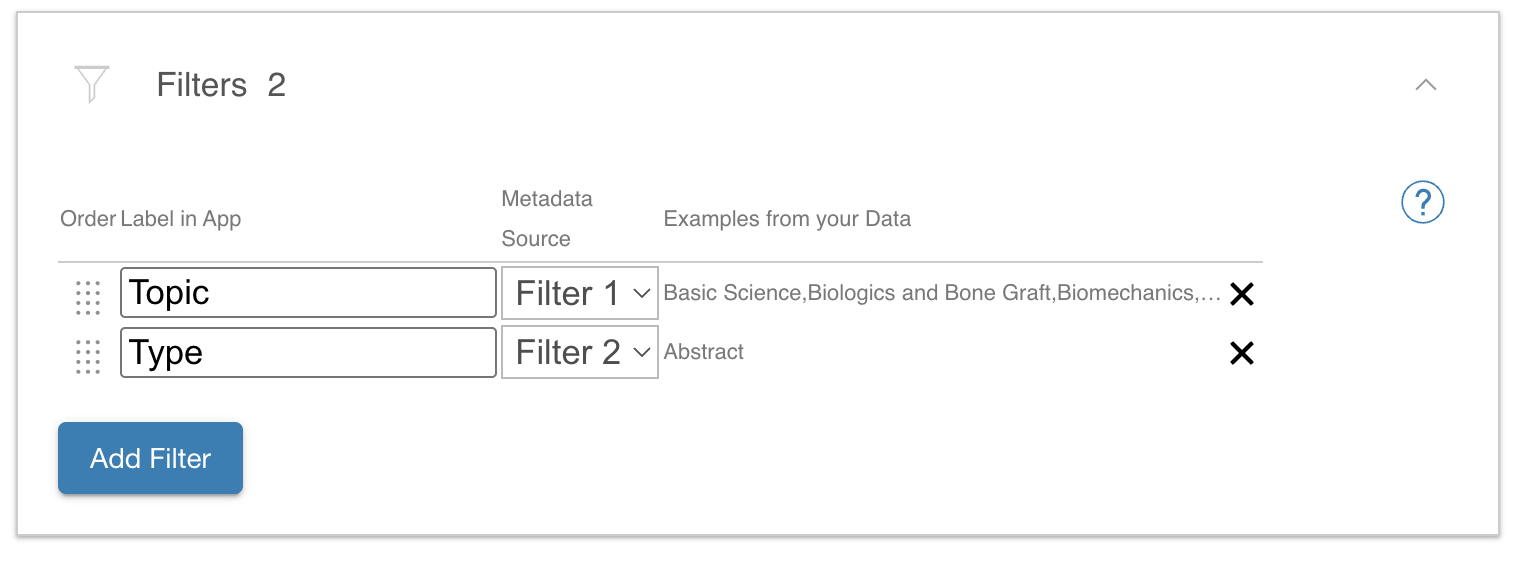
If you are importing filter keywords, ensure to open the filter card to:
- set the filter label
- adjust the filter display order
Credit Assignments
If you are using the Credit Certificate add-on, you can import the credit assignments directly.
- Navigate to Add Ons > Credits
- On the Session Credits page, click Add Import Source (note: you may need to click the carrot to expand the import card before this button is visible)
- Enter a logical name for the source to indicate where this import is coming from e.g. Planstone CE
- Tip: we recommend including the Planstone event ID in the name. When you clone your project in the future, you'll then easily know if you need to update your import source.
- Select Planstone CE Credits from the Source dropdown
- Select Next
- As prompted on the screen, enter:
- Planstone Account Code
- Planstone Conference Code
- Optional CE Types
For example, you may have CME and CNE and CME-Pharma listed in Planstone. But you only offer a CME certificate. In that case, enter CME in that field and only CME credit amounts will be imported.
Select Next
Mapping
Complete the field mapping for the table- Session Id > Session ID
- Cert Name > Cert Name
Note: The credit labels imported (like "CME") will be used to associate the corresponding certificate e.g. CME Certificate - Num Credits > Num Credits
- Select Next
Incremental Imports after Setup
- Return to the Conference App Builder, log in, and access your project
- You have three different import options:
- Import all at once
Select the Home menu > Import All Data - Import one data set (e.g. just speakers or just sessions or just media)
To import all sources for a given table individually, visit that page of the Conference App Builder (e.g. Agenda > Sessions) and choose Import All [Agenda] - Import one source only
To import just one single source, visit that page of the Conference App Builder (e.g. Agenda > Sessions), expand the import card if necessary, and select the Import button beside a single data source
Note: If you manually import individual sources, ensure to import all related sources (Sessions, Speakers, Media) or you may be seeing orphans errors.
- Import all at once
- If there are errors in your data, review this article: Common Conference App Builder Import Data Errors and Import Exclusion Reasons
- Select the Publish Menu on the top left and Publish to Proof
- After reviewing your data update in the proof version on iOS and Android, you may publish to live by selecting Publish Live Data
Note: If you are using the credit certificate, the Session Credit import is NOT included in the Import All. Please visit the page Add Ons > Credits and click Import on that page in order to update credit
FAQ
I have made changes in Planstone and imported but I am not seeing the content updated?
You may need to wait 15-30 minutes before your changes propagate into the API.
What triggers which sessions / presentations are imported into EventPilot from Planstone?
The Published field in Planstone must be set to true
I am unable to import my filter keywords - I am seeing an error that field length is exceeded?
During field mapping, the default delimiter is a comma. However, in Planstone data, the delimiter is a pipe symbol |. After selecting the metadata field to map to, the delimiter must be changed to the | symbol.
What are the Planstone session (parent) and presentation (child) IDs in the EventPilot platform?
For parent sessions the Planstone Id field is "schedid" and for presentations (child) sessions, it is the "pslinkid" field.
How do I remove a session from Eventilot?
Set the Published field in Planstone to false and then reimport your data into EventPilot.
In my speaker list, I am seeing a speaker called Break - how do I remove that?
In Planstone, all sessions have a speaker role so on import, a speaker entry gets generated for that role. In order to stop the system from generating a speaker for a particular role, follow these steps:
- Open Agenda > Speakers
- Expand the Import card and click the edit symbol next to the Planstone import source
- Select Step 2 Data
- In the field Subsession Roles Without Speaker (optional) enter the role you wish to exclude, e.g. Break
- Click the Next button to go to the Mapping step
- Click the Next button to go to Results. If you see any import errors, correct those in Planstone first and then click the Import button in the import card (you do not have to go through the setup steps to import data)
- Refresh the page and confirm that the speaker with the name Break is no longer displaying
- Publish to proof to see the results in the proof version of the app, publish to live to push the update to your attendees