Exhibitor data from Map Your Show may include the exhibitor’s booth name, type, location, description, email, logo, website, and any filter keywords (such as product category). All the data can easily be imported into the EventPilot Conference app and fully automated after the initial setup to remain up to date.
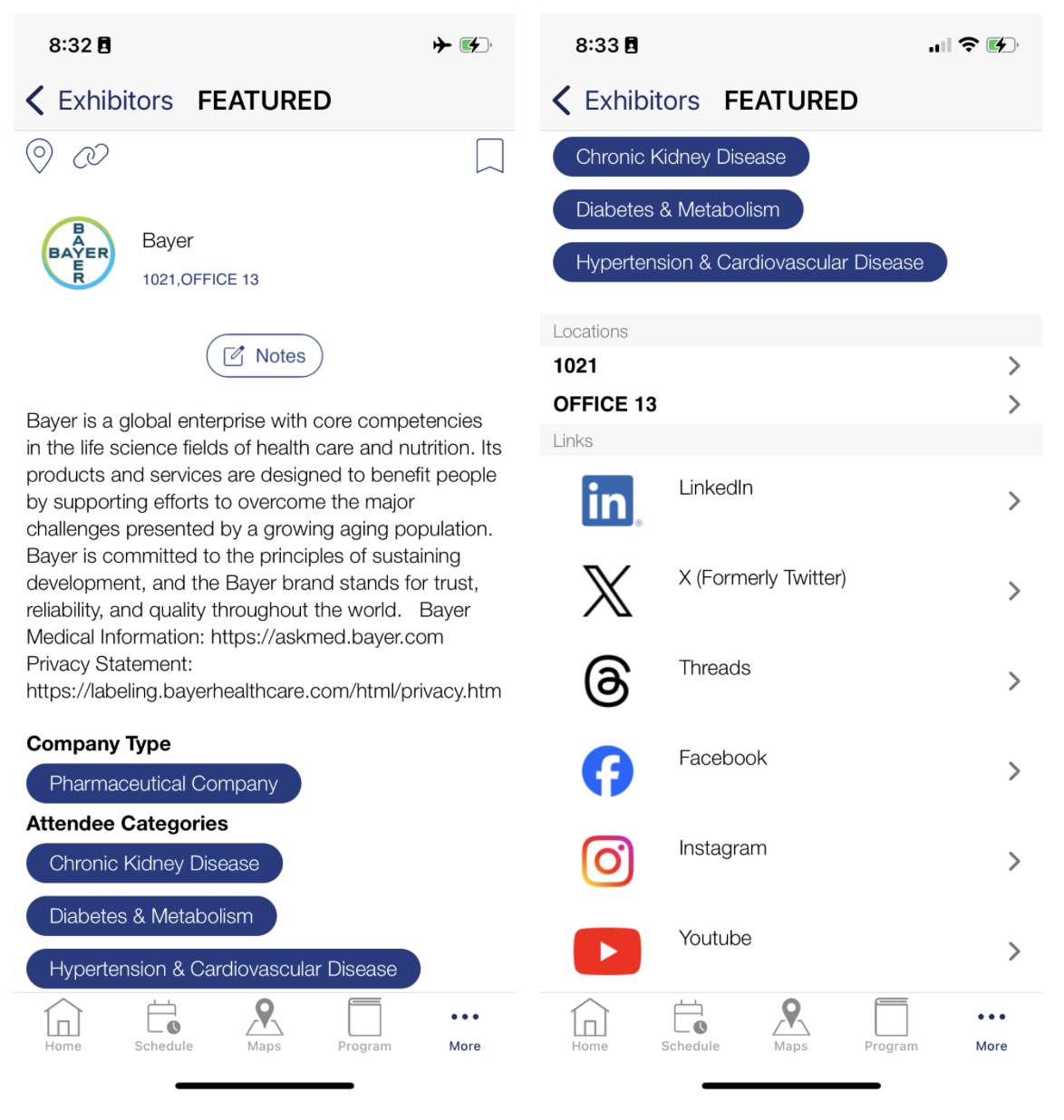
1. MYS to turn on the API
MYS must enable the API for ATIV. Send the following email to your MYS contact:
We'd like to use the MYS API with our vendor ATIV Software (ATIVUser).
Please turn on the API for our project, authorize ATIV, and provide us the event code. If you need a new code of conduct signed, please send the SignNow link to accounting@ativsoftware.com.
2. Set up the Exhibitor Import
Once you have received the event code and confirmation that the API is enabled for ATIV, access your project in the Conference App Builder and follow these steps:
- In the left menu, navigate to Expo > Exhibitors
- If the Import card is closed, click the drop down arrow to open it and click Add Import
- Step 1 Setup
- In the Source field, enter MYS followed by your show code for future reference e.g. MYS ABC27
(e.g. when you clone a project you'll know immediately if your event code is the old one) - Select MapYourShow from the Import Source Type drop down
- Click Next
- In the Source field, enter MYS followed by your show code for future reference e.g. MYS ABC27
- Step 2 Data
- In the Show Code field, enter your show code
- If exhibitors purchase sponsorship packages through Map Your Show, enter the labels you'd like to see appear via the Type Mapping field. Each package in MYS has a package number. For example, a basic listing is generally package 2 in the API. Upgraded listings would have a different number like Gold may be 5 and Silver may be 3 - please check with your setup. For example, a common setup would be: 2=Exhibitor&5=Gold Sponsor&3=Silver Sponsor. Ignore this step if you wish all exhibitors to be merely listed alphabetically without any types.
- Click Next
- Step 3 Mapping
- The field mapping is mostly automatic but review each mapped field
- Recommendations:
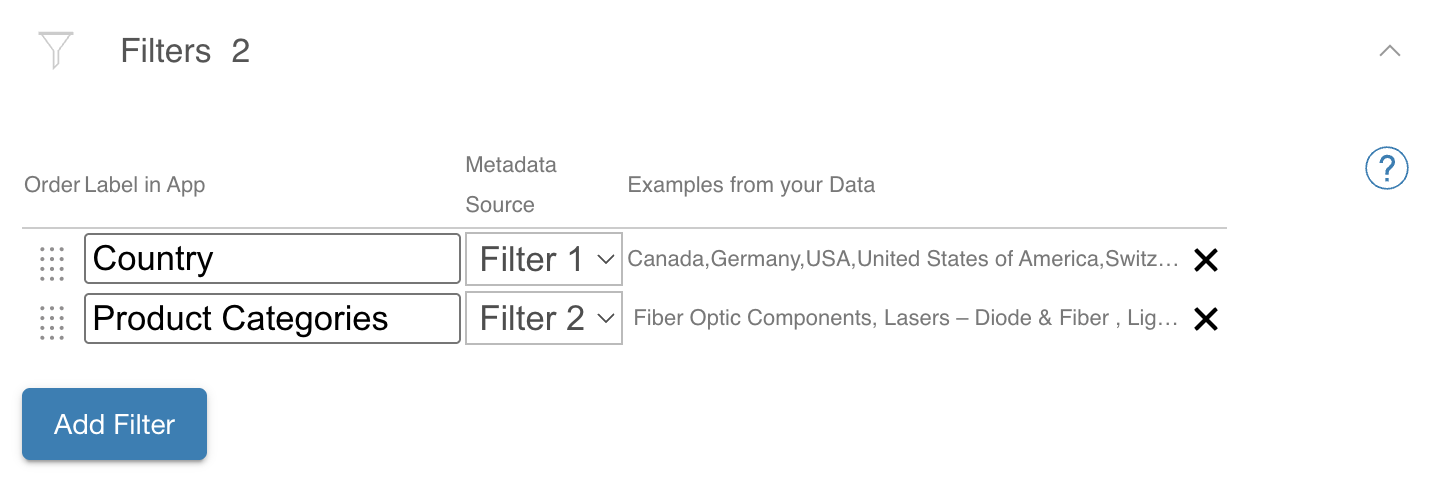
- If your event is international, set the country field to map to Filter 1 so attendees can then filter exhibitors by country
Tip: If you notice that countries are duplicated e.g. US, USA, United States of America, check with MYS if they can assist updating the entries to one single version of the country name and ensure to have a drop down list for exhibitors in the future. - Set email to Do Not Import as the email address in MYS tends to be the email of the person purchasing the booth and not the generic company sales email address
- Map booths_prefixed to the Location field. This is especially important if you also have other locations with just numbers. Using the Booth prefix option prevents any location confusion between Booth 123 and Poster 123 or Room 123.
- Set product_categories as Filter 2 which then allows attendees to filter the exhibitor list by product categories.
- Do not import the package_id field
- If your event is international, set the country field to map to Filter 1 so attendees can then filter exhibitors by country
- Click Next
- Step 4 Results
- The system will now import the dataset from MYS - if there are any errors in MYS and a record cannot be imported, you will see the excluded records and reasons why (e.g. the website URL is not a real link, etc.)
- Once the data is imported, open the Filter card and add remove the filters as needed. If you followed the steps above, Filter 1 is country and Filter 2 is product category. Adjust the labels as needed and the display order.
3. Set the Exhibitor Type Order
If you are using the type mapping, Gold sponsors will appreciate to be listed above Silver sponsors etc.
- Navigate to Expo > Types
- Adjust the order as needed by dragging and dropping e.g.
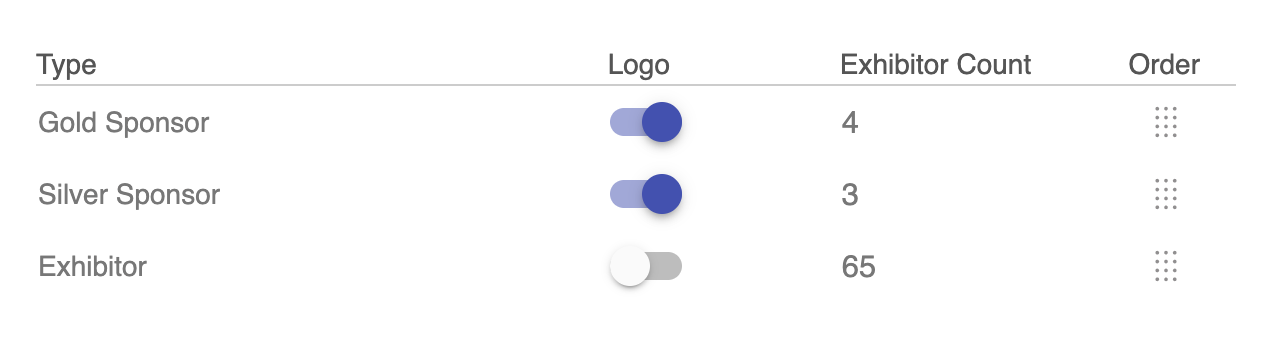
- To further highlight your sponsors, toggle Logo off (this hides the organization in the list view but still displays it in the detail view)
4. Set up the Social Media Link Import
- In the left menu, navigate to Media > Media Data
- If the Import card is closed, click the drop down arrow to open it and click Add Import
- Step 1 Setup
- In the Source field, enter MYS followed by your show code for future reference e.g. MYS ABC27
(e.g. when you clone a project you'll know immediately if your event code is the old one) - Select MapYourShow from the Import Source Type drop down
- Click Next
- In the Source field, enter MYS followed by your show code for future reference e.g. MYS ABC27
- Step 2 Data
- In the Show Code field, enter your show code
- Use the dropdown to choose whether or not you would like to add a link back to each exhibitor's profile on the MYS site
- Click Next
- Step 3 Mapping
- The field mapping is mostly automatic but review each mapped field
- media_id > Media ID
- exhibitor_id > Exhibitors ID
- title > Title
- subtitle > Subtitle
- url > URL
- type > Media Type
- icon > HTML Icon
- Click Next
- Step 4 Results
- The system will now import the dataset from MYS - if there are any errors in MYS and a record cannot be imported, you will see the excluded records and reasons why (e.g. the website URL is not a real link, etc.)
5. Publish and Test
- Click the Publish button to update your event apps
- Use Distribution > Testing Links (if available in your project) to test your data
FAQ
Do I have to manually reimport the data sources to update?
If you have an EventPilot Pro project, our team can assist you to set up an automated daily import/publish to refresh your MYS exhibitor list.
Exhibitors are uploading additional content on their MYS profile page. Will attendees see that?
Yes: if you set up the MYS Media import, the exhibitor detail view in the event app includes a link to the exhibitor's full profile on the MYS web page. The MYS profile includes the handouts, additional links, videos, etc. your exhibitor uploaded.
Can attendees use the exhibitor list offline in EventPilot?
Yes. The exhibitor list is fully integrated within the EventPilot conference app and can be searched completely offline. Any social media links displayed in the exhibitor detail view require internet access to open those pages.
Does the EventPilot AI Assistant find information about the exhibitors in the exhibitor list?
Yes. If users ask about content that may be related to exhibitors, the EventPilot AI Assistant will include the exhibitor in the responses with generally the link to the exhibitor detail view or, if mapped, the animated pin drop on the expo floor plan.
What happens if an exhibitor is canceled?
The import checks for the 'isactive' field. MYS describes this as active vs inactive/pending/non-approved. We only import if the exhibitor status is active (isactive=1). So as long as your exhibitors as set to inactive/pending/non-approved on the MYS side, they do not import.