A UDID (Unique Device Identifier) is a unique identifier assigned to an Apple device.
If you provide us with your device UDID, we can authorize your iPhone or iPad to install a pre-release branded EventPilot app. This allows you to install an early build without submitting the unfinished app to Apple’s TestFlight Beta App Review.
Your device must support the current or previous version of the operating system.
The easiest and most reliable way to find your UDID is by connecting your iPhone or iPad to a computer.
Important: Your UDID is different from your device’s Serial Number, IMEI, EID, or ICCID.
TABLE OF CONTENTS
Mac: Via Finder
Mac running the latest OSes move this functionality into the Finder app.
- Connect your iPhone or iPad to your Mac using a USB cable that supports data transfer.
- Unlock your iPhone or iPad.
- If prompted on either device, choose Trust or Allow and enter your device passcode.
- Open the Finder app on your computer
- In Finder sidebar on the left, look for Locations and select your iPhone or iPad.
- Your device information will appear near the top of the Finder window.

- Click the device information shown beneath the device name. Clicking this area cycles through additional device identifiers.
- When UDID appears, right-click it and select Copy UDID.

Apple’s current instructions:
- Apple: Locate and view your iPhone or iPad on your computer
- Apple: If your computer doesn't recognize your iPhone or iPad
I don’t see my device
If your iPhone or iPad does not appear in Finder or Apple Devices:
- Make sure the device is unlocked.
- Disconnect and reconnect the device.
- Watch your iPhone or iPad for a Trust This Computer? prompt and select Trust.
- Make sure your USB cable supports data transfer, not just charging.
- Try another USB cable or USB port.
- Restart your iPhone/iPad and computer.
- Make sure iOS/iPadOS, macOS, Windows, and the Apple Devices app are up to date.
If you previously selected Don’t Trust, you may need to reset your device’s Location & Privacy settings before reconnecting it: Settings → General → Transfer or Reset iPhone/iPad → Reset → Reset Location & Privacy
Reconnect the device and accept the Trust prompt.
Windows: Via Apple Devices App
- Using the Microsoft Store, Install/open the Apple Devices app on your Windows PC.
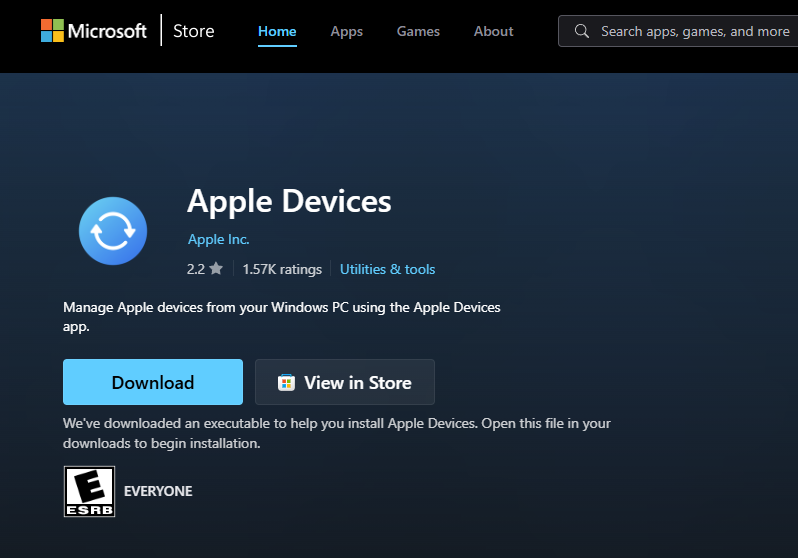
- Connect your iPhone or iPad using a USB cable that supports data transfer.
- Unlock your iPhone or iPad.
- If prompted, select Trust This Computer on your device and enter your passcode.
- Select your device from the sidebar in the Apple Devices app.
- Device information will appear beneath the device name.
- Click the device information to cycle through the available identifiers (first shows phone number, IMEI, etc) until the UDID appears
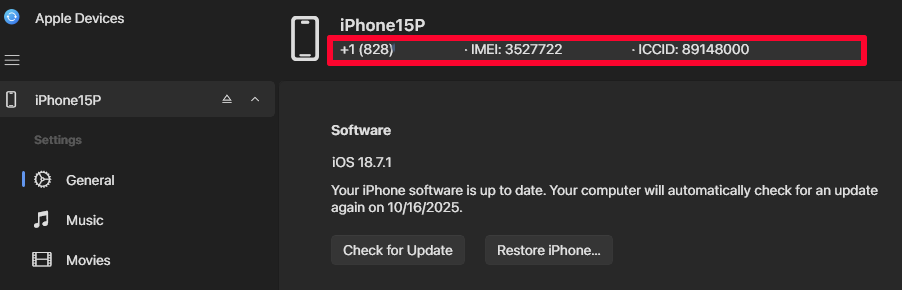
- Click on the info again until you see the UDID displayed and copy it.
Note that the UDID in this screenshot has been partially obscured for security reasons.
Via Website: UDID.tools
Follow the steps on this website https://www.udid.tools
Note: security settings on the iPhone may require you to wait one hour after first attempting to install the profile. Simply keep the browser tab open and then try again after one hour.