1st: Chronological
In list views, your sessions and subsessions will first be ordered chronologically. For example, the one that begins 7 AM will always display before the one that begins at 7:05 AM.
2nd: Session Type
In list views, when sessions start at the same time, they are listed based on your order of session types
Reorder your session types in the App Builder > Agenda > Session Types via drag and drop.
The most important session types should be listed on the top.
Example
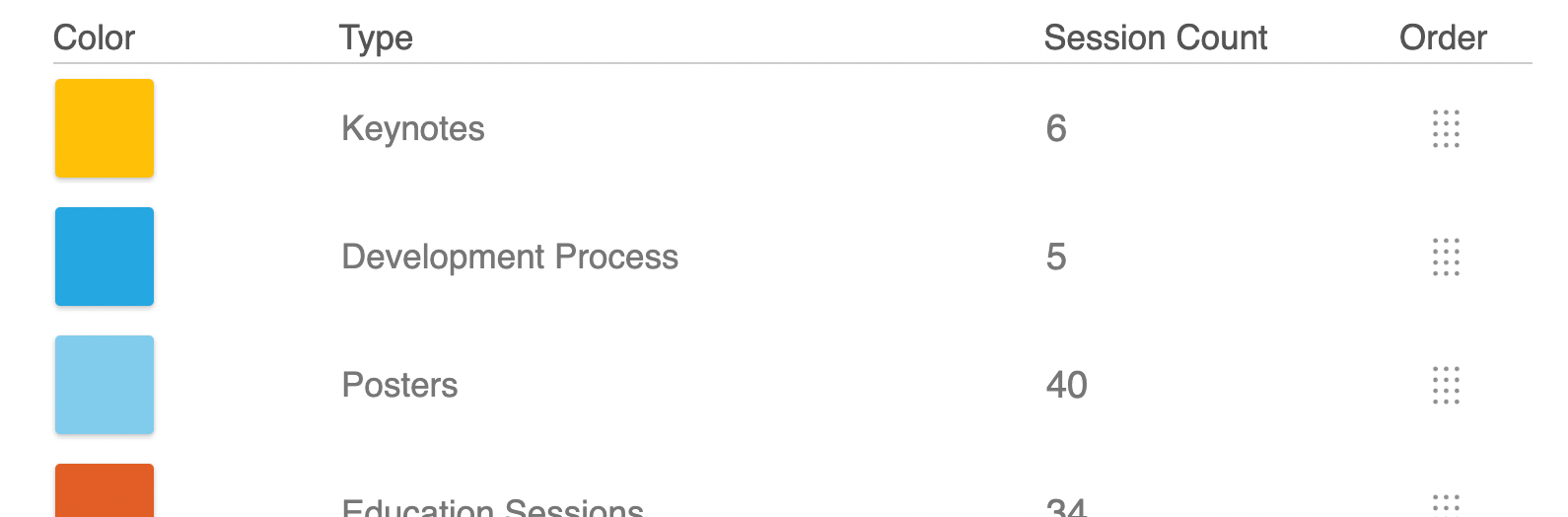
Based on the screenshot below, if a session of type Keynotes and a session of type Posters both began at 7 AM, the Keynotes session would appear first in the list.
3rd - EventPilot Pro: Choice between alphabetical or session number
Subscription projects sort sessions alphabetically.
EventPilot Pro users have additional order control:
In the App Builder > Settings > App Settings, you can switch between alphabetical order by title or by session number.
You can choose a different option for your sessions than for your subsessions, if desired.
For example:
- Parent: could have your parent sessions appear in alphabetical order based on their title.
- Presentation (child): Each presentation (sub-session) within the parent session could be listed based on the session number.
Search results may include a mix of parent-level and sub- sessions. In mixed search results, all records will be sorted by the parent-level sort setting.
If you select to sort by Session Number, you must be importing the session number in your data and have it mapped to the Session Number field. You can double check by following these steps:
- Navigate in the App Builder to Agenda > Sessions
- If you import your data:
- Open the Import card
- Click the Pencil icon next to the import source that imports your session data
- In the Import dialog, select Step 3 Mapping
- Ensure your Column Header that contains the session number is mapped to the field called Session Number

- If you manually added your sessions:
- Search for the session you'd like to have appear in a specific order
- Click on its title to open the session overview
- Check that the Session Number field is filled - if not, click the Pencil icon to edit the session and add a number
If you select to sort by Session Number, but the Session Number field is not populated, the system will fall back on ordering by title.
Understanding Alphanumeric Sort Order
Alphanumeric sorting treats text as text, not as numbers. So if one session titles or session number starts with S9 and another starts with S33, S33 will appear before S9. Why is that?
So the system is not thinking: 9 is smaller than 33
It is thinking: Compare character by character.
Here is what happens:
S9
S33
Step 1: Compare the first letter
S = S → same
Step 2: Compare the next character
9 vs 3
Since 9 comes after 3, S9 is placed after S33.
The system is not comparing 9 to 33 as whole numbers. It is comparing individual characters from left to right.
If you want it to sort numerically instead, the numbers need to be the same length, like:
S09
S33
Now it works because:
0 is less than 3, so S09 comes before S33.
The system sorts letter by letter, not by number value. That’s why S9 appears after S33.
Tip: Controlling Order via Seconds in Time
If several sessions or presentations start at the same time, and you cannot sort them by session number or adjust the titles to control the order, you can use the seconds in the start time to set the order instead.
This works when your sessions are imported from a Google Sheet, or when your abstract management system includes seconds in the start time field.
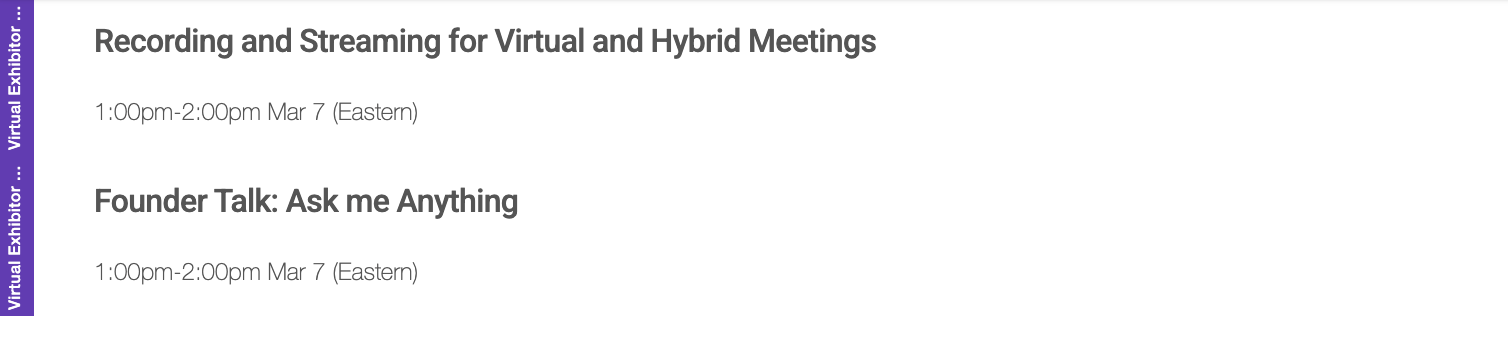
For example, we have these two sessions both start at the same time and they both belong to the same session type. I don't have session numbers. This forces the system to apply alphanumeric sorting:
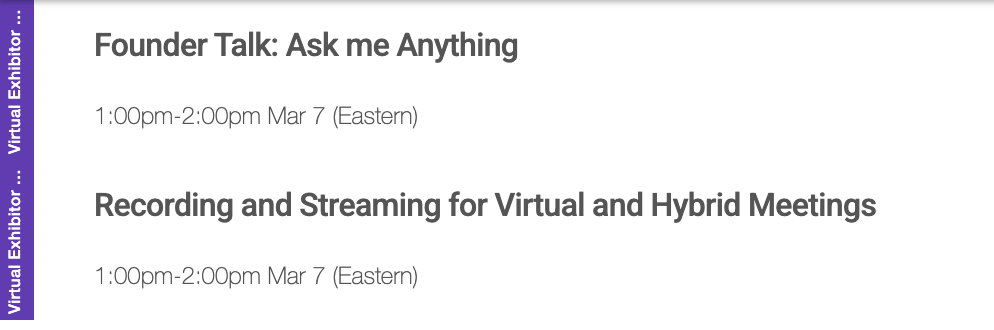
In order to force the session Recording and ... to appear before Founder Talk ... , I can change the start times:
1:00:01 pm Founder Talk...
1:00:00 pm Recording and ...
I have updated my spreadsheet for this session to start at 13:00:01 (in Google Sheets, you can change the formatting to display as 1:00:01 pm):

Reimport your data and publish the content to the app.
Using chronological sorting, Founder Talk ... now starts AFTER Recording and ...